Merging
Overview
Teaching: 20 min
Exercises: 20 minQuestions
How do I merge a branch changes?
Objectives
Learn about
git merge.
Merging a PR
Let’s use one of the PRs from the last exercise as an example. We can merge this PR via Github by clicking on the ‘Merge pull request’ button. You’ll notice that Github automatically checks whether there are any conflicts and has told us that there are not.
Now, let’s purposefully set up a conflict, to see what that looks like when dealing with a PR on Github. To do this, I’m going to change the colour of the buoy marker in main directly (which we’ve just told you is bad practice!).
Now our PR says that there are conflicts that must be resolved. It’s possible to do this in the web browser and we’ll look at this example there, as it’s small. But in larger and more complicated cases, you might want to deal with it via the command line.
Via the web browser, we are being shown something that looks like:
 <<<<<<< feature-branch
    buoys_geo.plot(ax=ax, color="blue")
=======
    buoys_geo.plot(ax=ax, color="green")
 >>>>>>> main
Here, either side of the =======, we have the line of code that is in conflict and we are told that the line above is coming from feature-branch whereas the line below is coming from main. The content above the ======= is usually from the branch being merged into and after is from the branch being merged.
We can simply delete one of these lines, and all of the extra symbols that have been added in. We can then click ‘Mark as resolved’ and then we need to commit the merge.
Now, in our PR, we have an extra commit called ‘Merge branch main into feature-branch’ and we no longer have any conflicts.
Squashing
One other thing to briefly cover while we are talking about PRs is squashing. Squashing allows you to combine multiple commits into just one commit. This makes the history of your repository much simpler and easier to follow, but you are also losing information by doing this and make it harder to track down bugs (among other pros and cons!). Some teams will have development workflows that involve squashing and others won’t, as we discussed last lesson, it’s important to talk to your collaborators about it.
We aren’t going to cover squashing in much detail here, other than how you can squash all of the commits in a branch at the point of merging the branch into main as a PR.
There is a branch of the upstream repo called multiple-commits. If we make a PR for that branch into main, we see that the ‘Merge pull request’ button has a little drop down arrow and one option is ‘Squah and merge’. If we select this, then all three of the commits on this branch are squashed when we merge.
git merge
So far we’ve talked about merging via the web broswer as part of a PR, but there will be other times you want to merge and it’s very useful to be able to do this from the command line as well.
When you are collaborating, you will have to merge a branch independently if your branch may or may not have diverged from the main branch. Most of the Git hosting platform like GiHub or GitLab allows you to merge a branch from their web interface but you can also merge the branches from your machine using git merge.
There are 2 ways to merge:
-
non-fast-forward merge (recommended)
-
fast forward merge
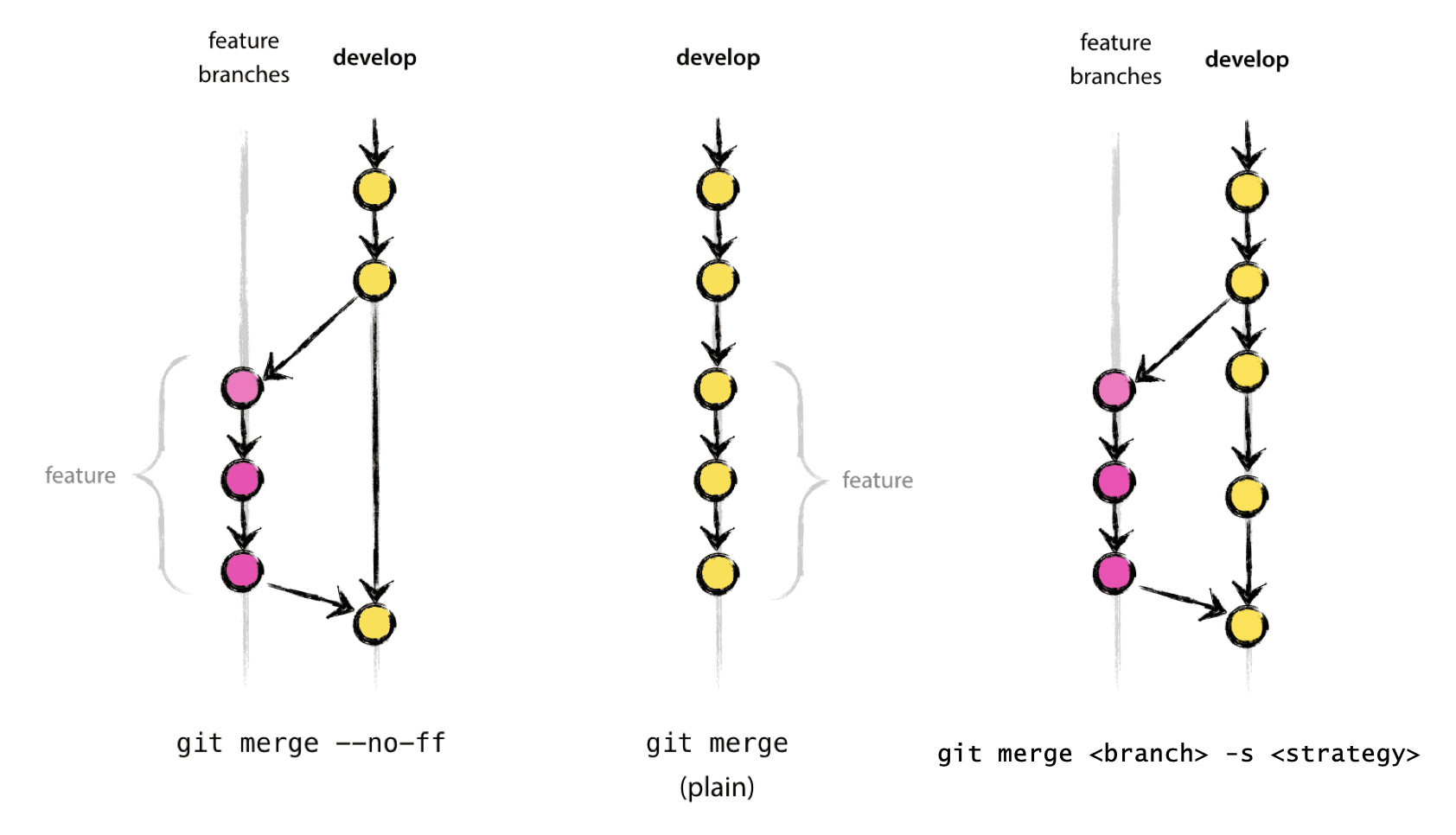
Reminder: when starting work on a new feature, be careful where you branch from! (And make sure that everything is up to date with the remote.)
git switch main
git pull
git branch branch-to-merge
git switch branch-to-merge
Make some small change on branch-to-merge.
git add plot_buoys.py
git commit -m "Some small commit"
Non-fast-forward Merge
Merges branch by creating a merge commit. Prompts for merge commit message. Ideal for merging two branches.
git switch main
git merge --no-ff branch-to-merge -m "Message"
git log -3
The --no-ff flag causes the merge to always create a new commit object, even if the merge could be performed with a fast-forward. This avoids losing information about the historical existence of a feature branch and groups together all commits that together added the feature.
Exercise: Creating a non-fast-forward merge.
In another directory, create a new Git repository that has the following tree.
*   69fac81 (main) Merge branch 'gitignore'
|\
| * 5537012 (gitignore) Add .gitignore
|/
* 6ec7c0f Add README
Solution
git init
touch README.md
git add README.md
git commit -m 'Add README'
git switch -c gitignore
touch .gitignore
git add .gitignore
git commit -m "Add .gitignore"
git checkout main
git merge --no-ff gitignore
Fast-forward Merge
If there are no conflicts with the main branch, a “fast-forward” merge can be executed with --ff-only. This will NOT create a merge commit! This aborts the merge if it cannot be done.
This is ideal for updating a branch from remote.
git switch main
git pull
git branch branch-to-ff-merge
git switch branch-to-ff-merge
Make some small change on branch-to-ff-merge.
git add plot_buoys.py
git commit -m "Some small commit"
git switch main
git merge --ff-only branch-to-ff-merge
git log -3
If using the fast-forward merge, it is impossible to see from the git history which of the commit objects together have implemented a feature. You would have to manually read all the log messages. Reverting a whole feature (i.e. a group of commits), is a true headache in the latter situation, whereas it is easily done if the –no-ff flag was used.
For a good illustration of fast-forward merge (and other concepts), see this thread.
Exercise: Creating a fast-forward merge.
Consider the following Git tree
* a78b99f (main) Add title
| * 3d88062 (remote) Add .gitignore
|/
* 86c4247 Add README
Is possible to run a fast-forward merge to incorporate the branch
remoteintomain?Solution
It is not possible to run a fast-forward merge because of commit
a78b99f.
Three-way Merge
This is similar to --no-ff, but there may be dragons. Forced upon you when there’s an intermediate change since you branched - if you branch to work on a piece of code and in the meantime, that piece of code is changed on main, when you want to merge your branch back to main, you will end up three-way merging.
You may well be prompted you to manually resolve conflicts (as we saw in the example at the start of this episode).
The ‘three’ in three way merging comes from the three versions of the code to consider: the branch you are merging, the branch you are merging into and the common ancestor of the branches.
git merge <branch> [-s <strategy>]
See here for a zillion options (“patience”, “octopus”, etc), But also git is only so smart and you are probably smarter.
See here and here for some discussion of merging strategies.
Note: there are a number of external tools that have a graphical interface to allow for merge conflict resolution. Some of these include: kdiff3 (Windows, Mac, Linux), Meld (Windows, Linux), P4Merge (Windows, Mac, Linux), opendiff (Mac), vimdiff (for Vim users), Beyond Compare, GitHub web interface. We do not endorse any of them and use at your own risk. In any case, using a graphical interface does not substitute for understanding what is happening under the hood.
Honestly, everyone probably ends up with their own way of resolving conflicts that is slightly different to everyone else’s. So let’s have a short example to have a bit of practice:
Exercise: Conflict resolution.
Create a new branch and rename the
plot_buoy_datafunction (in both locations!). Add a comment to the where the function is called from, as well. Commit these changes. Then, merge in the branchupstream/renameand resolve any conflicts.Solution
git pull origin
git branch merge-conflict
git switch merge-conflict
Make changes to
plot_buoys.py.git add plot_buoys.py git commit -m "Some small commit" git merge upstream/renameResolve conflicts!
git add plot_buoys.py
git commit -m "Resolve conflicts"
Key Points
git merge --no-ffis the best way to merge changes
git merge --ff-onlyis a good way to pull down changes from remote